You’ve got one great shot of your product — maybe it’s sitting on a plain white background from a listing photo, or a single lifestyle shot from a shoot months ago. Marketing, though, rarely wants just one scene. It wants your product on a kitchen counter, in someone’s hands outdoors, styled next to a coffee cup, staged for a holiday campaign. Producing all of that separately would mean multiple shoots. With an AI image generator, it means multiple prompts.
Dreamina, running on its most advanced image generation model, Seedream 5.0 Pro, is particularly effective at this kind of transformation, taking one product and placing it convincingly into a whole range of new environments. Here’s exactly how the process works.
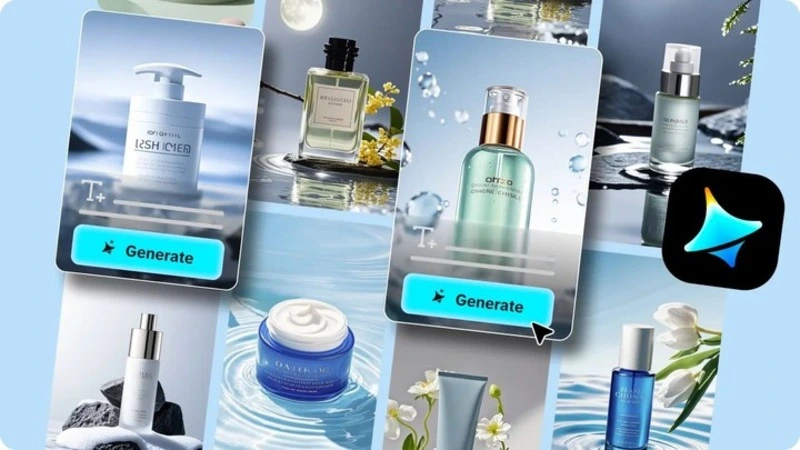
One shot, unlimited storytelling potential
Think of your original product image less as a finished asset and more as a template. The product itself — its shape, label, color, material — stays fixed, while everything surrounding it becomes flexible. A single water bottle photographed once can end up in a gym bag, on a hiking trail, on a kitchen counter beside fresh fruit, or styled minimally on a marble surface for an e-commerce listing. Each version tells a slightly different story about who uses the product and when.
Scene ideas worth generating first
Before diving in, it helps to have a shortlist of scenes that actually serve a marketing purpose rather than generating randomly:
-
A clean studio or catalog shot for e-commerce listings
-
An in-use lifestyle scene showing the product in context
-
A styled flat lay for social media
-
A seasonal or campaign-specific setting
Starting with these four covers most of what a typical product needs across different platforms.

Why this beats a full reshoot every time
Producing five or six scenes traditionally means five or six separate shoots, locations, or at minimum, extensive prop styling. Generating them from one base image instead means:
-
No additional physical samples or locations required
-
Every scene can be tested and adjusted before committing to a final version
-
New seasonal or campaign scenes can be added anytime without scheduling a shoot
For any brand producing content regularly, that’s a meaningful shift in both speed and cost.
Your 3-step scene expansion with Dreamina
Here’s the exact workflow for turning one product shot into several distinct scenes.
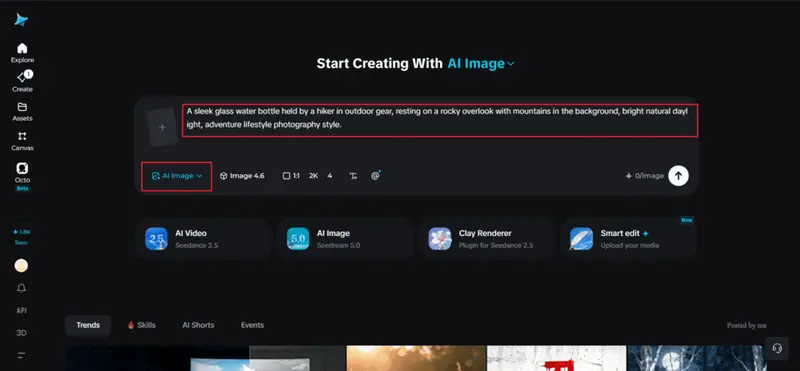
Step 1: Write a text prompt and/or add a reference image
Navigate to Dreamina and write a detailed text prompt describing a person dressed appropriately for the scene you’re building, along with the product itself and the new setting you want it placed in. Upload a reference image of your actual product so Dreamina can preserve its shape, label, and material accurately across every new scene.
For instance: A sleek glass water bottle held by a hiker in outdoor gear, resting on a rocky overlook with mountains in the background, bright natural daylight, adventure lifestyle photography style.
Keeping the product description precise and consistent while changing only the surrounding scene is the key to this working well.
Step 2: Adjust parameters and generate
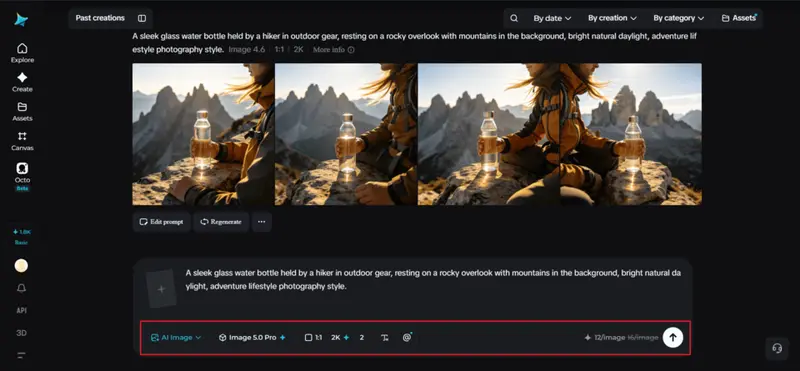
Once your prompt and reference image are ready, adjust your generation settings. Select Image 5.0 Pro, powered by Seedream 5.0 Pro, as your model, then choose your aspect ratio, image size, and resolution, going with 1K while testing different scene ideas or 2K once you’ve picked the scenes worth finalizing. Click Dreamina’s generate icon to create each new version.
Step 3: Customize and download
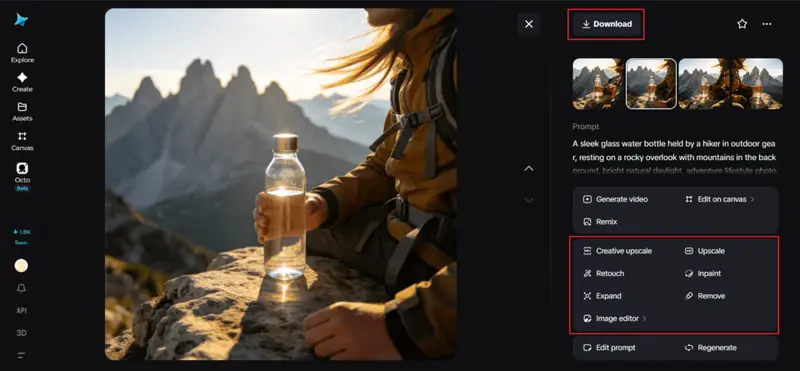
Once each scene generates, use Dreamina’s AI customization tools to refine it — inpaint to fix any inconsistencies in how the product appears, expand to widen the new setting, remove to clean up distracting elements, and retouch to make sure lighting on the product matches its new environment. When each scene looks convincing, click the Download icon to save it.
Keeping the product looking identical across every scene
The entire technique falls apart if the product itself starts drifting between generations — a slightly different label, a shifted proportion, a color that’s subtly off. This is exactly why Seedream 5.0 Pro’s capabilities matter so much here. Its multi-layer visual control separates the product from its background, keeping the product layer untouched while the surrounding scene changes entirely.
The pinpoint precision editing tools, with point selection, lasso, sketch guidance, and regional controls, let you correct any small inconsistency that does slip through. And with 2K output, fine label text, material texture, and reflections stay sharp and accurate no matter which environment the product is placed in.
Matching lighting between product and scene
A product that looks slightly “pasted in” almost always comes down to a lighting mismatch. Before finalizing a scene, check that the direction and warmth of light on the product roughly matches the environment around it — a product lit for a bright outdoor shot should carry warmer, harsher light than one placed in a softly lit indoor kitchen scene.
Naming consistent lighting language in your prompt for both product and setting keeps this aligned from the start.
Quick FAQ on multi-scene product generation
A few things that tend to come up early in this process:
-
Does the original product photo need to be high quality? Yes, a clear, well-lit reference image gives the most accurate results
-
Can I reuse the same reference across dozens of scenes? Yes, the same product reference works for as many scene variations as you need
-
Will the product proportions ever shift? Occasionally — this is where the retouch and inpaint tools become useful for quick corrections
Final thoughts
One solid product photo can genuinely become an entire content library, as long as you’ve got the right AI image generator behind it. With Dreamina and its advanced Seedream 5.0 Pro model, your product stays consistent and accurate while the world around it changes scene by scene.
Start with one strong reference image, plan your scenes with purpose, and let Dreamina build out the rest of your product’s story.